

File storage is one of the most common reasons teams start looking at self-hosted infrastructure. Documents, project files, customer data, contracts, exports, and internal knowledge often end up spread across commercial cloud drives, chat attachments, email inboxes, and local disks. This file sprawl, while convenient at first, will become difficult to control once compliance, data ownership, access permissions, and backup requirements become more important and once teams grow and more and more members need to access those files.
Seafile (Figure 1) is an open source file sync and share platform for teams that want to operate their own cloud storage system. It provides web-based file access, desktop and mobile sync clients, sharing links, team libraries, file previews, document collaboration, and optional enterprise features through a Professional Edition. For startups, agencies, associations, research groups, and DevOps-minded teams, Seafile is an alternative to established services like Dropbox, Google Drive, OneDrive, Nextcloud, or even SharePoint to a certain degree.
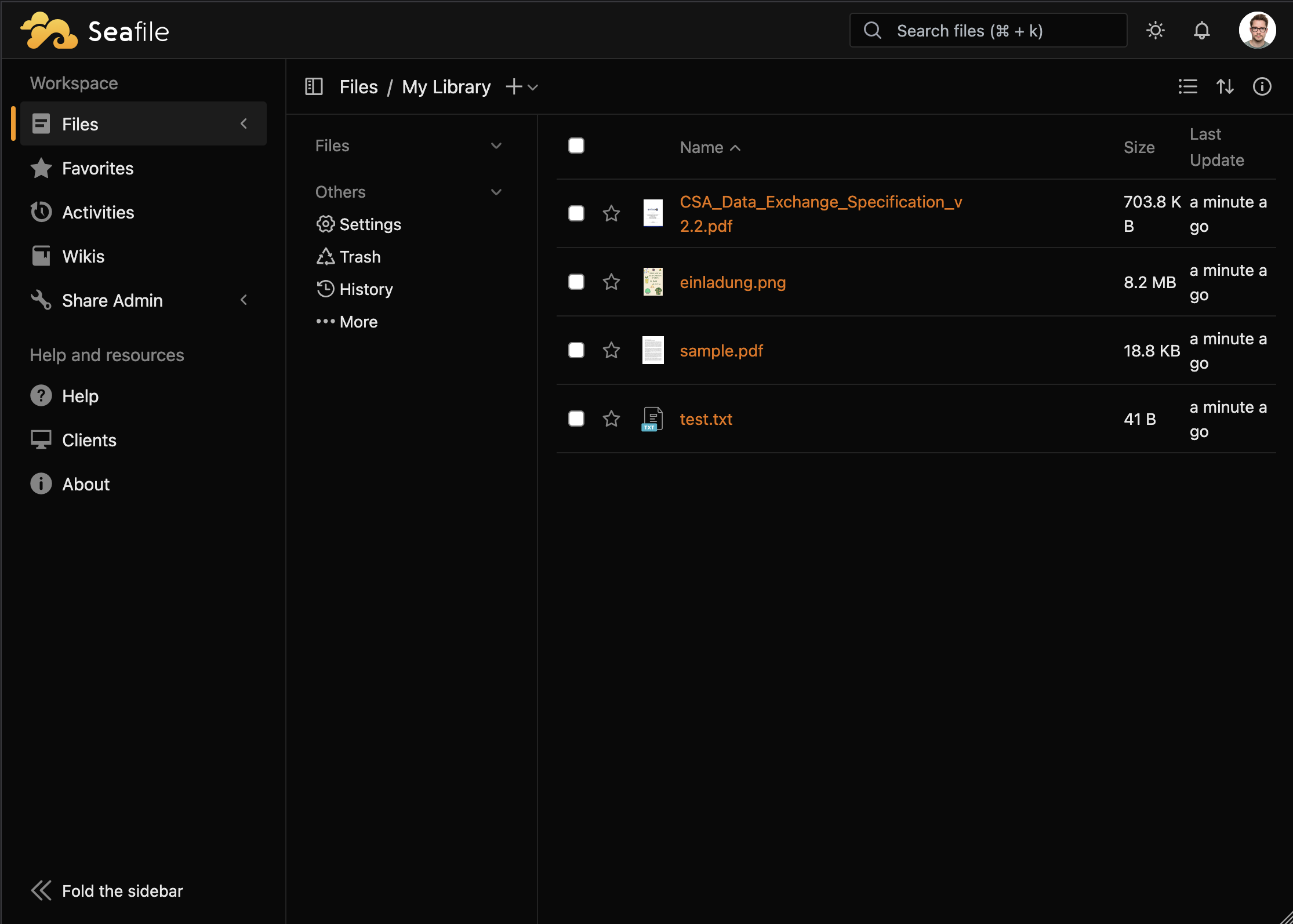
At first glance, Seafile competes with Nextcloud, ownCloud, and commercial cloud storage services. In practice, it has a somewhat different emphasis. Seafile is less of a general collaboration suite and more of a file platform. Its synchronization model is based on libraries rather than one giant filesystem tree. Each library can be synced separately, shared separately, encrypted separately, and configured with its own history settings. That model is one of the main reasons administrators choose Seafile when sync performance and clear separation of data matter more than having every groupware feature in one product.
In this article we will take a practical look at Seafile: how to install it, how to create the first library, how desktop syncing works, how sharing and groups are handled, what to consider for backups and upgrades, and which security settings deserve attention before using it in production. Table 1 provides basic information about the Seafile project.
| Name: | Seafile |
|---|---|
| URL: | https://seafile.com |
| License: | AGPLv3 for server core, Apache 2.0 for Seahub web UI |
| Documentation: | https://manual.seafile.com/ |
| First Release: | 2012 |
| Current Release Line: | 13.x |
| Paid Version: | Community Edition and Professional Edition |
| Managed Version: | Seafile Cloud |
Table 1: Seafile project information.
Installing Seafile
Seafile can be installed in several ways, but the project documentation now clearly points administrators toward Docker-based deployments using Docker Compose with sensible defaults. A Seafile installation is not just one process as it includes the Seafile server itself, the Seahub web interface, a database, cache service, and usually a reverse proxy handling HTTPS. Docker Compose keeps these pieces together and makes the installation easier to reproduce.
The official Community Edition deployment expects a working Docker and Docker Compose installation. A typical setup starts in /opt/seafile:
mkdir /opt/seafile
cd /opt/seafile
The official documentation provides Compose files and an .env file template. In a production setup, you should inspect these files before starting them, especially because they define persistent storage paths, database passwords, the public hostname, and the initial administrator account.
The most important variables are:
SEAFILE_VOLUME=/opt/seafile-data
SEAFILE_MYSQL_VOLUME=/opt/seafile-mysql/db
SEAFILE_CADDY_VOLUME=/opt/seafile-caddy
SEAFILE_SERVER_HOSTNAME=files.example.com
SEAFILE_SERVER_PROTOCOL=https
INIT_SEAFILE_ADMIN_EMAIL=admin@example.com
INIT_SEAFILE_ADMIN_PASSWORD=CHANGE_ME
SEAFILE_MYSQL_DB_PASSWORD=CHANGE_ME
JWT_PRIVATE_KEY=CHANGE_ME_TO_A_LONG_RANDOM_SECRET
TIME_ZONE=Europe/Berlin
The JWT_PRIVATE_KEY should be a long random value. The database password and initial administrator password should be generated rather than typed from memory and stored in your password manager of choice.
After the environment file has been edited, start Seafile with:
docker compose up -d
The first startup takes a little while because Seafile initializes the database, generates configuration files, and creates the initial administrator account. The logs are the best way to follow that process:
docker logs seafile -f
Once the service has started, open the configured hostname in the browser. If Caddy is part of the deployment (the default) and DNS is correct, HTTPS certificates should be obtained automatically. If something fails, check DNS first, then the Caddy logs, and then the Seafile logs.
The default Docker layout stores the important data outside the container. Typical paths include:
/opt/seafile-data
/opt/seafile-mysql/db
/opt/seafile-caddy
These directories matter more than the running containers. The containers can be recreated. The database, configuration files, libraries, file blocks, and certificates cannot be recreated unless they are backed up.
Creating Your First Library
After logging in as the administrator, the first user-facing concept to understand is the library. Seafile does not present all files as one single global tree. Instead, users create libraries. A library is a collection of files that can be synced, shared, and managed as a unit.
For example, a small company might create libraries like this:
Company Documents
Finance
Engineering
Marketing Assets
Customer Projects
Personal Archive
Each library has its own permissions and history. Users can sync only the libraries they need and that they have been granted access to. A contractor might receive access to one customer project library without seeing the rest of the organization's file structure. A large media library can be kept separate from frequently edited office documents. An encrypted library can be used for especially sensitive material.
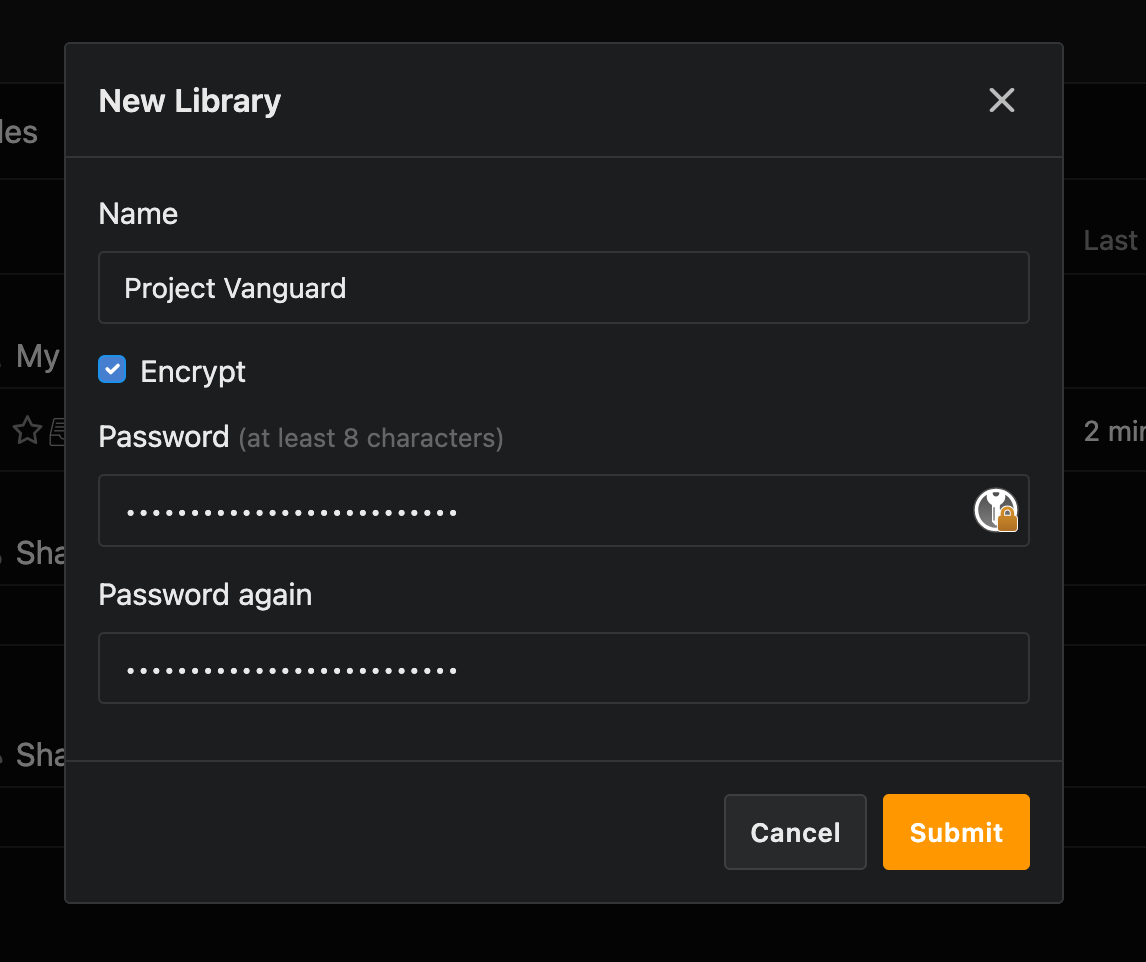
To create a library, click New Library in the web interface, enter a name, and optionally choose encryption (Figure 2). After the library exists, files can be uploaded through the browser. For small files and occasional access, this works well. For day-to-day work, however, the desktop sync client is the more important tool.
On a user's workstation, install the Seafile sync client and connect it to the server URL. After logging in, the client shows the available libraries. Each library can be synced to a local folder. This is a useful difference from some other sync tools: users are not forced to sync everything. They can decide that one library should be local, another should stay server-only, and another should be synced to a different disk.
A typical first sync looks like this:
Server: https://files.example.com
Library: Engineering
Local folder: ~/Seafile/Engineering
After the initial sync, files changed locally are uploaded to the server and then downloaded by other clients with access to the same library. The web interface can still be used to preview files, download individual items, restore older versions, and manage sharing.
Syncing and the Drive Client
Seafile offers two main desktop access models: the sync client and the drive client. The sync client keeps a local copy of selected libraries. This is the classic Dropbox-style model. It is fast, works offline and is the best option for files that users actively edit.
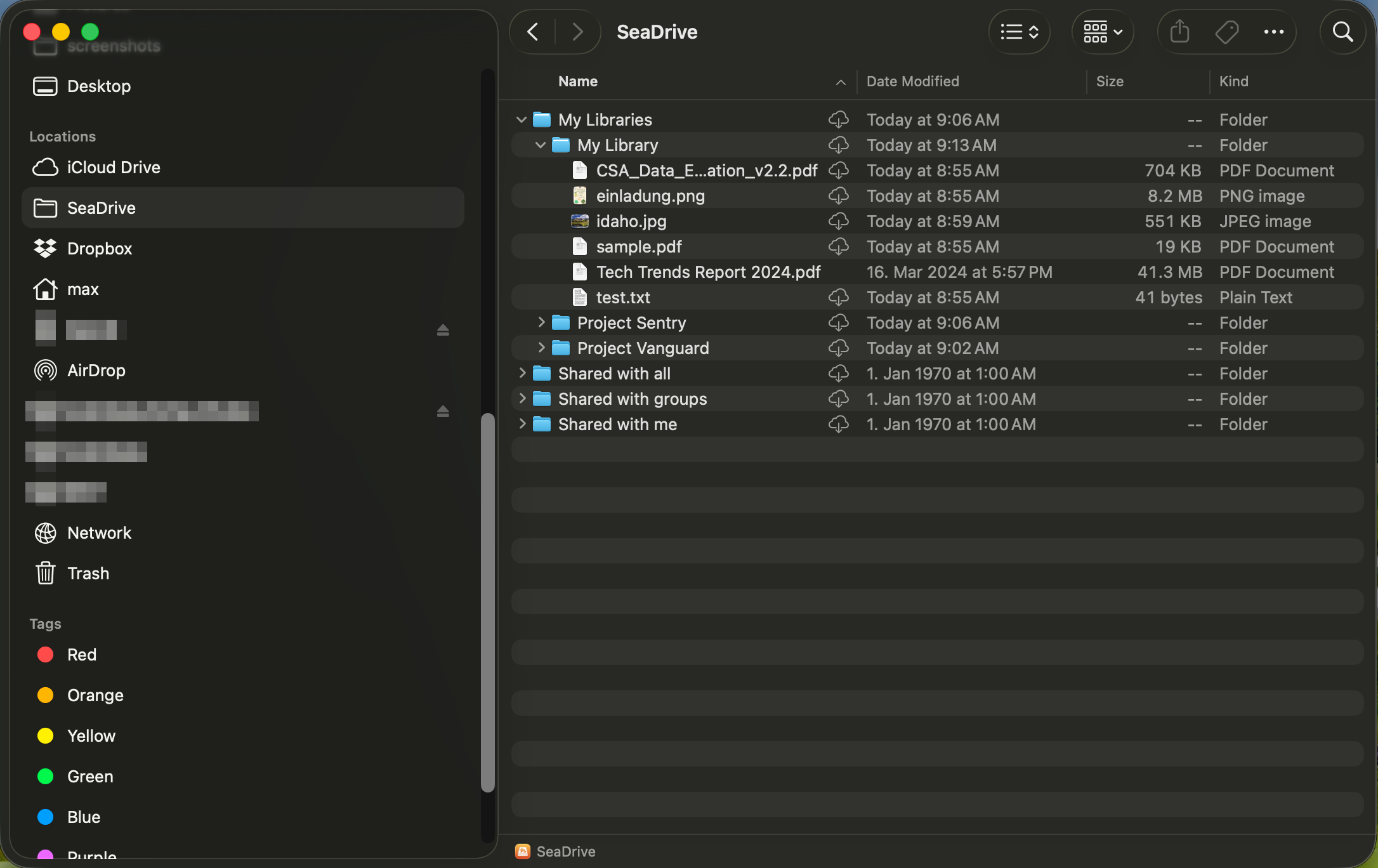
The drive client (Figure 3) exposes remote libraries as a virtual drive. Files appear in the local file manager, but they do not all need to be downloaded immediately. This is useful when users need access to a large amount of data but only work with a small part of it at any given time. This is a very useful distinction as, for example, syncing a 20GB project library to a developer laptop is reasonable while syncing a 4TB media archive to every laptop is not. The drive client is better for browsing and occasional access to large collections. The sync client is better when reliable offline work and local performance are required.
A sensible rollout may use all three user interfaces:
- Sync client for active project libraries
- Drive client for archive or reference libraries
- Web interface for occasional access and sharing
Users will need clear guidance here. Without it, some will sync too much data, others will use the drive client for files they expect to edit offline, and both groups will eventually complain about behavior that is actually a deployment decision.
For mobile users, Seafile provides iOS and Android clients. These are useful for browsing, uploading photos, sharing files, and accessing documents while away from a workstation. They should not be treated as replacements for a managed mobile document workflow, but for many teams they cover the basic requirement.
Sharing Files and Folders
File sharing is one of Seafile's core features. Users can share entire libraries, whole folders, or individual files. Sharing can be internal, where another Seafile user or group receives access, or external, where a public link is created.
Internal sharing is the better option whenever the recipient has a user account. It keeps access tied to identity, allows permissions to be changed later, and makes it easier to remove access when someone leaves a project. External links are useful for customers, partners, and one-off transfers, but they should be treated carefully.
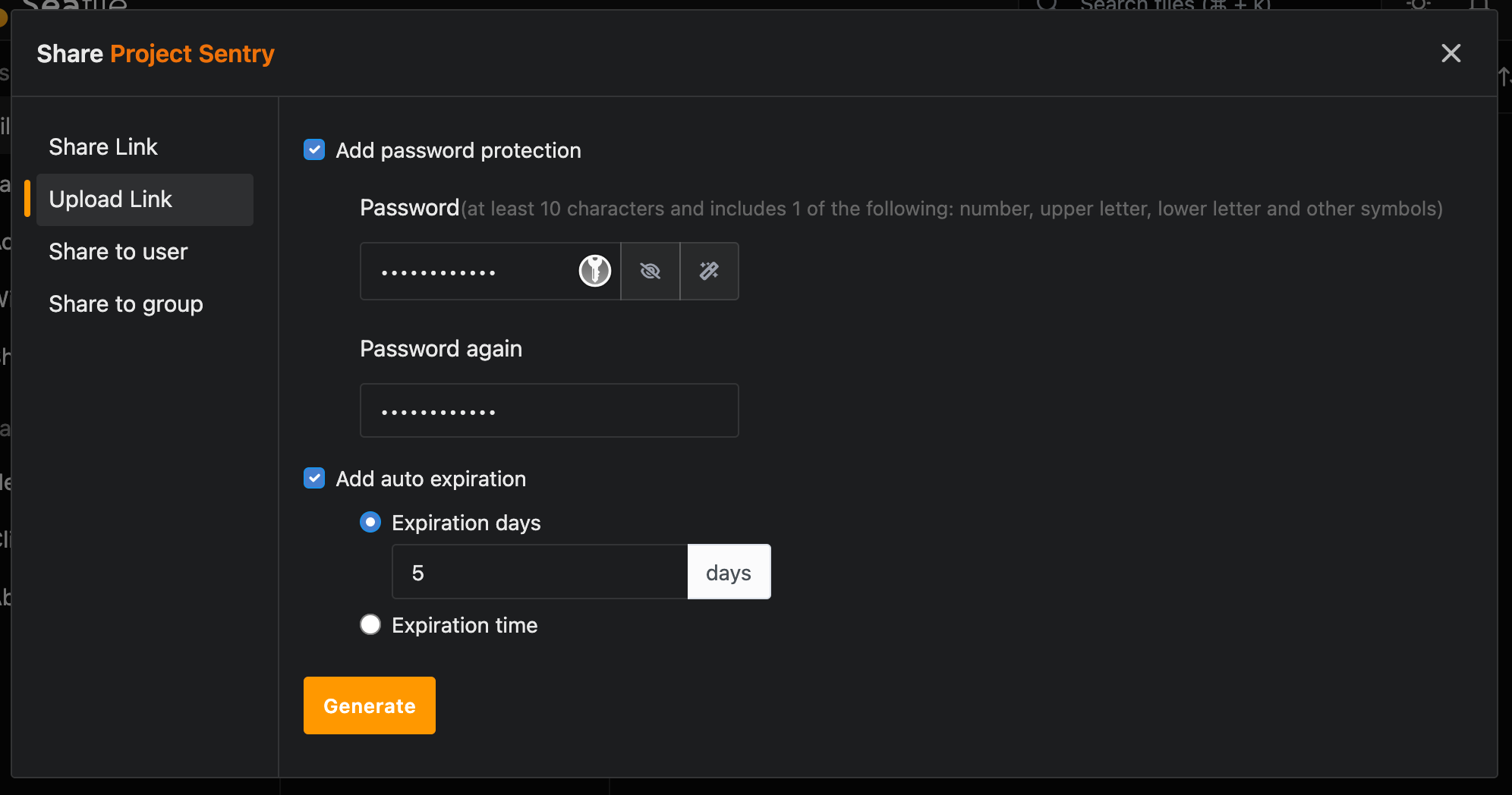
When creating public links, users can configure options such as passwords and expiration dates (Figure 4). Administrators should encourage both. A public link without an expiration date has a habit of becoming permanent infrastructure. Six months later, nobody remembers why it exists, but it may still expose a contract, export file, or customer archive. Unfortunately, Seafile provides no way for administrators to enforce a certain policy on link sharing (e.g., to ensure all shared links are protected by a password and have an expiration date).
A good sharing policy is simple:
- Use internal sharing for employees and regular collaborators.
- Use groups instead of sharing the same library with many individual users.
- Use public links only for external recipients.
- Set passwords on public links when the content is not public.
- Set expiration dates unless there is a documented reason not to.
- Review old public links periodically.
Seafile also supports upload links. These allow external users to upload files into a library or folder without giving them broader access. This is useful for collecting documents from customers or partners. As with download links, upload links should have expiration dates, and the target folder should be chosen carefully. Do not let external users upload directly into a library where internal users also keep trusted working files unless the workflow really requires it.
Groups and Teamwork
For team use, groups are more manageable than individual sharing. A group can represent a department, project team, customer account, or temporary working group. Libraries can then be shared with that group, and access is controlled by group membership.
A small deployment might use groups like this:
- Management
- Finance
- Engineering
- Sales
- External Contractors
- Project Alpha
- Project Beta
This model is straightforward, but it still needs planning. Groups are easy to create and hard to clean up later if nobody is responsible for them. Before inviting many users, decide whether groups will represent departments, projects, or permission levels. Mixing all three without naming conventions quickly becomes confusing.
The most common mistake is to use one large "All Users" style group for too much. That may be fine for general company documents, but it is not appropriate for finance folders, customer exports, or HR records. The other common mistake is to share libraries directly with individuals. That works for 5 users, but it becomes painful with 50.
For larger organizations, LDAP or Active Directory integration is worth evaluating. This integration allows Seafile accounts to follow existing identity infrastructure instead of being managed separately. Even then, file permissions need design. Directory groups created for email distribution lists or VPN access may not map cleanly onto file-sharing permissions.
As with any collaboration platform, the technical permission model is only half the story. The other half is user behavior. People will create links, copy files, duplicate libraries, and invite colleagues. Good defaults, clear naming, and periodic access reviews matter more than a long policy document nobody reads.
File History and Snapshots
One of Seafile's important features is file history. Files change, and users make mistakes. A spreadsheet is overwritten, a folder is deleted, a document is corrupted, or a sync conflict creates confusion. Seafile tracks history at the library level, allowing users to recover older versions and view snapshots.
This is not the same as a backup, though! Version history helps users recover from normal mistakes. Backups help administrators recover from disk failure, database corruption, ransomware, accidental deletion of the whole instance, or a failed upgrade. Every organization needs both.
History retention should be configured intentionally. Keeping unlimited history for every library may consume more storage than expected, especially for frequently changing binary files. Keeping almost no history removes one of the main benefits of the platform. A reasonable starting point is to keep longer history for office documents and shorter history for temporary exchange libraries.
For example:
- Company Documents: 180 days
- Finance: 365 days
- Project Exchange: 30 days
- Temporary Uploads: 7 days
- Archive Libraries: limited changes, longer retention
Because Seafile stores data using blocks and can deduplicate data between versions, it is generally more efficient than a naive full-file copy approach. That does not mean storage usage should be ignored: Make sure to monitor data growth, deleted files, history settings, and garbage collection so that users aren't surprised by upload failures when disks run full.
Encrypted Libraries
Seafile supports encrypted libraries. When a library is encrypted, users choose a password for that library, and all data in that library is encrypted end-to-end with no passwords stored on the server. This can be useful for sensitive data where server-side administrators should not casually browse file contents. If the password is lost, however, the data may be unrecoverable. If users share it insecurely, the encryption does not help much. Some server-side features (e.g., previews, indexing, or search) may be limited depending on how the encrypted data is accessed.
A practical approach is to reserve encrypted libraries for data that really needs that extra separation, such as legal archives, security incident material, board documents, or sensitive customer exports. In these cases, make sure to have the password available in several places but in a secure way so that it can be recovered if a single user loses it.
For general team folders, normal access control, transport encryption, disk encryption, backups, and good operational security are usually easier to manage. Encrypting every library sounds attractive until the first user forgets a library password or expects full-text search to work like it does for normal files.
Administrators should also explain that encrypted libraries protect file contents, not necessarily all metadata. File names, sizes, modification patterns, and sharing behavior may still reveal information depending on the exact configuration and access path. For highly sensitive environments, test the security model rather than assuming it matches a marketing phrase.
Full-Text Search, SeaDoc, and Newer Features
Seafile started as a sync-and-share system, but newer releases have expanded the platform. Seafile 13 introduced a stronger focus on metadata, views, real-time updates, document editing, search, and AI-assisted file organization. Depending on the edition and enabled services, deployments may include SeaDoc, SeaSearch, notification services, metadata services, and thumbnail services.
This changes the character of Seafile somewhat. A minimal Seafile instance is a file-syncing system. A fully enabled modern Seafile instance becomes a broader file collaboration platform. That may be exactly what some teams want, but it also increases operational complexity.
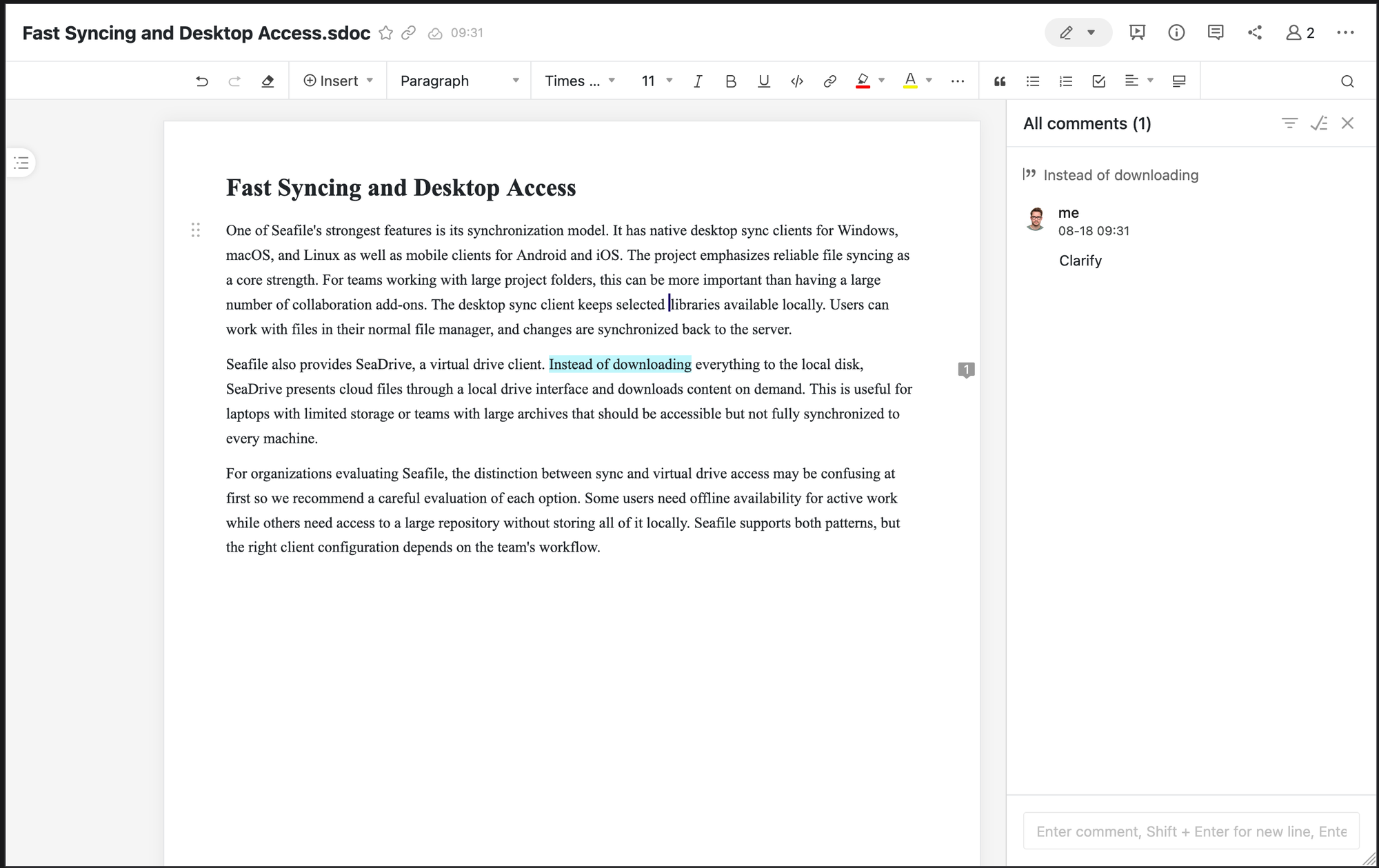
Teams don't necessarily need to enable every optional service for their installation as each one brings more operational complexity to the table. Full-text search is useful when users need to find documents by content. SeaDoc is useful when collaborative document editing is part of the workflow (Figure 5). Metadata views are useful when libraries contain structured collections of files. AI-based tagging and summaries may be useful for discovery, but they also raise questions about data handling, compute requirements, and user expectations.
Sending Emails
Like most collaboration systems, Seafile needs email to work properly. Password resets, notifications, sharing messages, and user invitations all depend on outbound mail. A Seafile instance without working email may appear usable during testing, but it will become frustrating in a team environment.
Mail settings are usually configured in /opt/seafile-data/seafile/conf/seahub_settings.py. A typical SMTP setup looks like this:
EMAIL_USE_TLS = True
EMAIL_HOST = "mail.example.com"
EMAIL_HOST_USER = "seafile@example.com"
EMAIL_HOST_PASSWORD = "CHANGE_ME"
EMAIL_PORT = 587
DEFAULT_FROM_EMAIL = EMAIL_HOST_USER
SERVER_EMAIL = EMAIL_HOST_USER
After changing mail settings, restart the Seafile service:
docker compose restart
Since email delivery issues can be caused on several layers, start by testing connectivity from the server or container. For STARTTLS on port 587, use:
openssl s_client -starttls smtp -connect mail.example.com:587
For implicit TLS on port 465, use:
openssl s_client -connect mail.example.com:465
Some VPS providers restrict outbound SMTP, especially on port 25 and sometimes on port 465. In that case, use a proper transactional mail provider or the organization's existing mail relay. Also configure SPF, DKIM, and DMARC for the sending domain. Otherwise, emails may be sent successfully but disappear into spam folders.
Backups and Garbage Collection
A Seafile backup must include both the database and the file data; the database stores important metadata, accounts, permissions, and library information, while the data directory stores file blocks and configuration.
For a Docker-based installation, back up at least:
/opt/seafile-data
/opt/seafile-mysql/db
/opt/seafile-caddy
/opt/seafile/*.yml
/opt/seafile/.env
A simple filesystem-level archive might look like this:
tar czf seafile-config-and-data.tar.gz /opt/seafile /opt/seafile-data /opt/seafile-caddy
For the database, use a proper dump or a database-aware backup mechanism. Do not rely on copying live database files unless you know the database is stopped or the snapshot is consistent.
A better production backup process is:
- Dump the Seafile databases.
- Snapshot or archive the Seafile data directory.
- Copy the backup off-site.
- Encrypt the backup.
- Test restore onto a separate machine.
- Document the restore process.
Seafile also needs garbage collection. When users delete files, the underlying blocks are not necessarily removed immediately because they may still be referenced by history or other files. Garbage collection removes blocks that are no longer needed. This is normal behavior, but administrators should be aware of it because users may delete a large library and expect disk usage to drop immediately.
A garbage collection run should be planned, especially on large instances. It may consume I/O and CPU, and it should not be started blindly during business hours on a busy server. As with backups, the exact command depends on the deployment method and version, so follow the admin manual for the installed release.
Upgrades
Upgrades are one of the areas where Seafile deserves more planning than some smaller self-hosted tools. The project has Community and Professional editions, Docker-based deployments, optional services, and database migrations. A successful upgrade is usually straightforward if the documented path is followed. A failed upgrade without backups is not straightforward at all.
Before upgrading:
- Read the release notes.
- Check whether the upgrade path is supported directly.
- Back up the database and data directories.
- Snapshot the virtual machine if possible.
- Test the upgrade on a copy of the instance.
- Verify clients after the upgrade.
The documentation provides a good starting point for developing an upgrade strategy. Additionally, consider client compatibility: A server upgrade is not finished just because the web interface loads. Desktop clients, mobile clients, drive clients, sync status, sharing links, and external integrations should all be checked. If the organization has many users, communicate the maintenance window and ask a few representative users to test their workflows afterward.
Avoid using floating image tags in production. Pin versions (using the image SHA checksum) and upgrade deliberately. This is especially important when optional services such as search, notification servers, or document editing are part of the deployment.
If an instance is still running an older binary-based installation, evaluate the migration path towards Docker carefully. Do not assume that switching to Docker is just a matter of copying files into a new container. Thankfully, the Seafile team provides a step-by-step guide for the migration towards a Docker-based installation.
Monitoring and Troubleshooting
A small Seafile instance can run quietly for a long time, but production administrators should still monitor it. At minimum, watch disk usage, database health, container status, HTTP availability, and TLS certificate renewal. File-sync systems are storage systems, and storage systems fail in boring but predictable ways: Disks fill up, backups silently stop, certificates expire, and users upload far more data than expected.
Useful checks include:
- Is the web interface reachable?
- Is the file server reachable?
- Are Docker containers running?
- Is disk usage below the warning threshold?
- Are database backups recent?
- Are Seafile logs growing with errors?
- Are TLS certificates renewing?
- Are clients reporting sync errors?
The logs are stored under the Seafile data directory in Docker deployments. When something goes wrong, check both Docker logs and Seafile's own logs. A reverse proxy error may never reach the Seafile application log. A database error may appear in the Seafile log but not in the proxy. A client-side sync problem may require looking at the user's local client log as well.
Common problems include incorrect external URLs, DNS mistakes, failed certificate issuance, mail misconfiguration, permissions on mounted volumes, and insufficient disk space. Most of these are not Seafile-specific, but Seafile exposes them quickly because it depends on several services working together.
Security
Seafile, like any file storage solution, stores exactly the kind of data that many attackers want: documents, archives, contracts, exports, personal data, and sometimes secrets that should not have been uploaded in the first place. The system should therefore be treated as sensitive infrastructure.
The first rule is to expose only what needs to be exposed. The public web interface may be necessary for external sharing, but administrative access should be limited. Use HTTPS everywhere. Keep the server and containers updated. Disable open registration unless the instance is meant to be public. Use strong passwords and enable two-factor authentication for administrators and important users.
The second rule is to design permissions carefully. Avoid sharing sensitive libraries with broad groups. Review public links. Use expiration dates. Remove users promptly when they leave the organization. If LDAP or another external identity source is used, make sure deactivated users actually lose access in Seafile.
The third rule is to protect the host. This includes the Docker host, database, reverse proxy, backup storage, and mail relay. A compromised host means a compromised Seafile instance. Apply normal server hardening: restricted SSH access, regular updates, firewall rules, monitoring, and off-site backups.
Encrypted libraries can help for selected use cases, but they are not a replacement for proper access control, and they complicate the user experience to a certain degree. They also introduce key management problems. Use them where the tradeoff is worth it.
Finally, test incident response. Know how to disable a user, revoke public links, rotate SMTP and database credentials, restore a deleted library, and recover the whole instance from backup. These operational actions matter more than a polished login page.
Review & Outlook
Seafile is a strong option for organizations that want self-hosted file syncing and sharing without turning their file platform into a full groupware suite. Its library-based model is clean, its sync clients are mature, and its separation between libraries makes it easier to manage large or sensitive data collections than a single monolithic folder tree.
The project is particularly attractive when sync performance, selective synchronization, encrypted libraries, and clear team sharing are more important than calendars, contacts, or a large app marketplace. Compared with Nextcloud, Seafile feels more focused. Compared with simple object storage or network drives, it provides a much better user experience for distributed teams.
There are rough edges, though. The architecture has several moving parts. Docker deployment is convenient, but administrators still need to understand databases, reverse proxies, storage paths, logs, backups, and upgrades. Optional newer features such as metadata services, SeaDoc, search, and AI functionality can be useful, but they also make the system more complex.
For small teams, Seafile can be a straightforward replacement for commercial cloud drives. For larger organizations, it can become a serious internal file platform, provided that permissions, backups, monitoring, email, and lifecycle management are handled properly. As with most self-hosted infrastructure, the software installation is only the beginning. The long-term success of a Seafile deployment depends on boring operational discipline: clear ownership, tested backups, predictable upgrades, and a permission model users can actually understand.
This article was made possible by support from Hetzner through Linux New Media’s Topic Subsidy Program.
Learn more about self-hosting on Hetzner infrastructure.